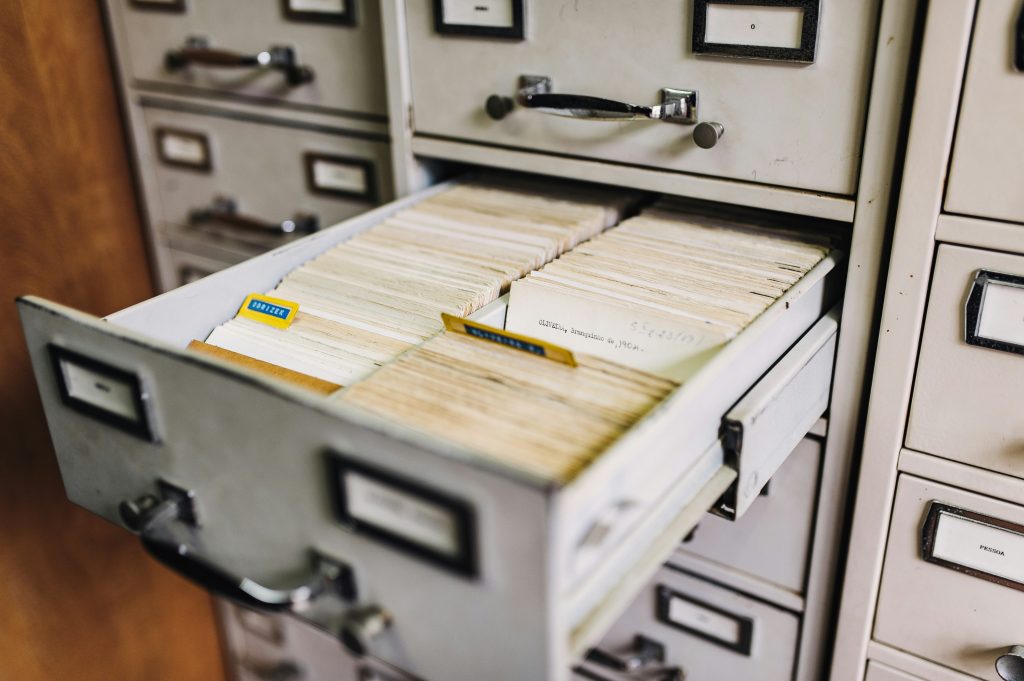
Your notes are in three different apps. Your tasks live in two separate lists. Your files sit in folders named “New Folder (3)” and “Final FINAL v2.” Sound familiar? The PARA method was designed to fix exactly this. Created by productivity writer Tiago Forte as part of his Building a Second Brain approach, it gives you one simple structure for organizing information across every app and device.
This guide explains how PARA works, how it differs from a typical folder tree, and gives you five steps to set it up in about an hour. It works in Notion, Obsidian, Apple Notes, or plain folders. You don’t need special software, just four buckets and a different way of deciding where things go.
What Is the PARA Method?
PARA stands for Projects, Areas, Resources, and Archives. Every piece of information you keep belongs in one of the four:
- Projects: efforts with a deadline and a defined outcome, such as “Launch new website by June 30”
- Areas: ongoing responsibilities with no end date, such as Health, Finances, or Client Management
- Resources: topics or reference material you may use later, such as marketing research or book notes
- Archives: inactive items from the other three that you don’t need now but don’t want to delete
The difference from a typical folder system is the logic. Most people organize by topic (“Work,” “Personal,” “School”). PARA organizes by actionability: how much attention does this need right now? Projects are the most active and Archives the least, and items move between buckets as your work changes.
Why PARA Can Work Better Than Topic Folders
Topic-based folders drift away from how you work. You end up with a “Work” folder holding 47 subfolders, half of which you haven’t opened in two years. Finding anything becomes a small daily tax. With PARA you know where to look: Projects for active work, Areas for ongoing responsibilities, Resources for reference, Archives for everything else. Three advantages stand out:
- It works across apps. The same four top-level folders can live in Notion, your file system, your email, and Obsidian.
- It scales. Ten projects or a hundred, the structure stays the same.
- It simplifies filing. Each filing decision becomes one question with four possible answers, which helps you spend less effort on organizing and more on doing.
Quick Overview: The 5-Step Setup
| Step | Action | Time needed |
|---|---|---|
| 1 | Audit everything you have | 30 minutes |
| 2 | Set up your four buckets | 10 minutes |
| 3 | Move active projects first | 20 minutes |
| 4 | Define your areas of responsibility | 15 minutes |
| 5 | Build an archive habit | 5 minutes a week |
5 Steps to Set Up PARA
Step 1: Audit What You Have (30 Minutes)
Open every place where you store information: your notes app, task manager, email, cloud storage, and downloads folder. Scan quickly and don’t read everything. Ask yourself: what active commitments do I have? What ongoing areas am I responsible for? What notes am I actually using, and what am I just hoarding? Skip this step and you’ll build a tidy system on a messy foundation. You don’t need to be exhaustive, just get a rough picture.
Step 2: Create Your Four Buckets
Create four top-level folders, notebooks, or pages, depending on your app:
- 1 – Projects
- 2 – Areas
- 3 – Resources
- 4 – Archives
The numbers keep them in order in any app. Do this in every tool you use, so that wherever you open, you know where to look. Keep the names clean, with no “My” or “Work” prefixes.
Step 3: Move Active Projects First
A project has a specific outcome and a deadline, even a rough one. “Get healthier” is an Area. “Run a 5K by October” is a project. Write down every active project you have now. Most people have somewhere between 5 and 15. Create a subfolder for each one, then move the related notes, files, and tasks into it.
Just listing your projects gives you a clear view of what you’re working on and what’s waiting. If you use a task manager, use the same project names there. See our comparison of the best task management apps for tools that hold tasks and notes together.
Step 4: Define Your Areas of Responsibility
Areas are the parts of your life that need regular attention but have no finish line: Health, Finances, Career Development, Relationships, Home. For remote workers, common ones include Client Management, Team Communication, Personal Development, and Side Projects.
When a health project such as a 30-day fitness challenge ends, it goes to Archives, but “Health” stays an Area. Keep only what you actively use to maintain each Area. Everything else belongs in Resources or Archives.
Step 5: Build an Archive Habit
This is the step most people skip, and it keeps the system sustainable. When a project finishes, move its folder to Archives instead of deleting it. When a Resource stops being relevant, archive it. When an Area changes, for example when you leave a job, archive that folder too. Active folders stay current, and nothing is lost.
Add a five-minute archiving check to your weekly review: what finished this week, and what stopped being relevant?
A Sample Structure
| Bucket | Example contents (illustrative) |
|---|---|
| 1 – Projects | Q3 report draft; Website redesign; Move apartments |
| 2 – Areas | Health; Finances; Client work; Learning |
| 3 – Resources | Book notes; Meeting templates; Research on tools |
| 4 – Archives | 2025 client projects; Old job files; Finished courses |
PARA in Practice
In Notion
Create four top-level pages. Under Projects, add a page for each project with a linked database of tasks and deadlines. Under Areas, keep evergreen pages such as Health and Work. Resources becomes your knowledge base. Notion’s linked databases let you view the same data from different angles. Our list of Notion templates includes ready-made setups.
In Obsidian
Create four root folders in your vault and use links and tags across categories. Our Obsidian for beginners guide shows how to get started. Daily notes can link to project folders, and finished projects are archived with their context intact. Files stay on your device, so your Archive stays yours.
In Your File System
Create four root folders in Documents, and mirror them in Google Drive or Dropbox. PARA doesn’t care about the container. Choose your tool from our list of note-taking apps based on how you work, not because PARA demands it. If you want the wider method, read our guide to building a second brain.
Common Mistakes
- Too many subfolders. Splitting into “Work Projects” and “Personal Projects” recreates the old chaos. Keep the top level to four.
- Using Areas as a dumping ground. If everything is filed under “Work,” you’ve only moved the problem.
- Never archiving. Without the habit, Projects fills with dead projects and the system slows down.
- Confusing Projects and Areas. Ask what “done” looks like. If you can’t answer, it’s an Area.
- Skipping the audit. You’ll miss half your existing commitments.
If you found the GTD method too elaborate, PARA can be a leaner alternative. It focuses on where information lives instead of how tasks flow, and many people use both.

Start With the Audit
Most productivity systems are either too simple for real complexity or too elaborate to maintain. PARA sits in between: four buckets, one rule (organize by actionability), and a weekly archive habit. You don’t need the perfect setup on day one. Do the 30-minute audit today, set up one app, and expand from there.
Frequently Asked Questions
What is the PARA method?
An organizational framework created by Tiago Forte that divides information into Projects (active work with deadlines), Areas (ongoing responsibilities), Resources (reference material), and Archives (inactive items). It works across any app.
How long does setup take?
Roughly 75 minutes: 30 for the audit, 10 for the buckets, and about 35 to file your most active projects and areas. You don’t have to move everything at once. Start with current work and file older material as you meet it.
Can I use PARA in Notion?
Yes. Its databases let you link tasks, notes, and projects in ways that mirror PARA’s logic. Create four top-level pages and build from there.
Is PARA better than GTD?
They solve different problems. GTD covers capturing, clarifying, and reviewing all your commitments. PARA focuses on organizing the notes and files that support them. Many people use GTD principles for tasks and PARA for information.
Do I need special apps?
No. Any app or system that supports folders works, including Apple Notes, Google Drive, Notion, Obsidian, or a physical filing cabinet. The best app is the one you’ll actually open every day.
About the author: Alex is a software developer who has worked remotely for three years. He started Deep Focus Daily to document the productivity systems that actually survive real remote work — not the advice written for offices that no longer exist. Learn more about Deep Focus Daily →