
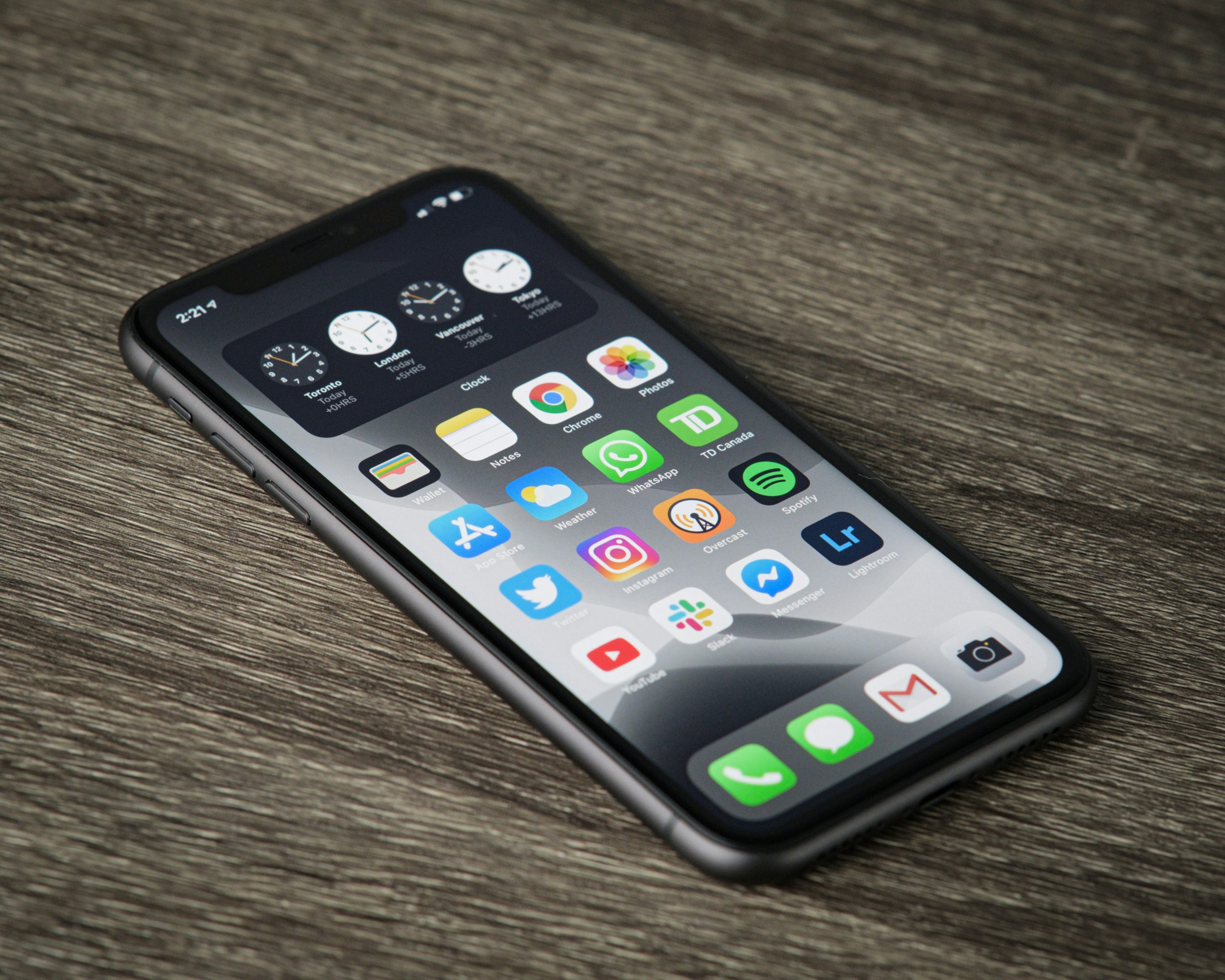
Most remote workers now have more than one AI assistant open at once: a chat tool for writing, a copilot inside the code editor or spreadsheet, a scheduling agent, a meeting summarizer, and a suggestion panel in whatever project tool the team uses. Each one pings, suggests, or asks for a decision. That’s AI agent overload, and it’s a different problem than the old inbox-and-Slack kind of overload, because every one of these tools is designed to feel helpful in the moment it interrupts you.
Microsoft’s 2026 Work Trend Index, covered by Forbes, found that AI adoption inside organizations is nearly universal while the productivity gains often stay marginal, because tools get bolted onto old workflows instead of replacing the parts of the day that actually waste time. That gap between “everyone has AI” and “AI clearly saved us time” is the same gap a lot of individual workers feel by 4 p.m., after answering the fifth AI suggestion of the day about something that didn’t need a suggestion.
This guide isn’t another list of AI apps to try (see our roundup of AI productivity apps for that). It’s a framework for the opposite problem: too many AI tools already running, each one earning less of your attention than it costs. You’ll get an audit checklist to cut the list down to what actually pays for the interruption it causes.
Quick Overview: 5 Ways to Cut AI Agent Overload
| # | Step | Best for |
|---|---|---|
| 1 | Log every AI tool pinging you for a week | Seeing the real scope of the problem |
| 2 | Score each tool’s interruption-to-value ratio | Separating helpful agents from noisy ones |
| 3 | Cut anything that fails the ratio, for two weeks | Testing whether you actually miss it |
| 4 | Consolidate notifications for what’s left | Reducing context-switching between apps |
| 5 | Re-audit every quarter, not once | Keeping new tools from quietly piling back up |
The AI Agent Overload Problem
A few years ago, “AI at work” mostly meant one chat window you opened on purpose. Now it means an agent embedded in your email client that drafts replies before you ask, a copilot in your spreadsheet suggesting formulas, a scheduling assistant proposing meeting times, and a project tool nudging you toward “AI-suggested” next steps. None of these individually looks like a distraction. Together, they’re a steady drip of small decisions: accept, dismiss, edit, ignore.
That drip has a cost even when each interruption is short. Research on task switching by Gloria Mark and colleagues, in the widely cited paper The Cost of Interrupted Work, found that people took more than 20 minutes on average to return to a task after being pulled away from it. AI suggestions are usually smaller than a phone call or a colleague at your desk, but they still ask for a decision, and repeated small decisions add up to the same kind of fragmented attention that older research on attention residue describes: part of your mind stays on the interrupted thing even after you’ve moved on.
The result is decision fatigue that doesn’t feel like decision fatigue. You’re not choosing between big options. You’re triaging dozens of tiny AI-generated ones: accept this rewrite, dismiss this suggestion, review this summary, approve this scheduled send. Each one takes seconds. All of them together can eat a morning, and unlike a meeting, none of it shows up on your calendar.
Where AI Agents Help vs. Where They Just Add Noise
Not every AI tool causes agent overload, and cutting all of them isn’t the goal. The honest split is between tools that replace a task you’d do anyway and tools that add a new decision on top of the task you were already doing.
Where They Help
- Batch tasks you were going to do anyway: transcribing a meeting, summarizing a long document, drafting a first pass of routine writing. These replace work rather than adding a review step to it.
- One clear output, once: a scheduling agent that proposes a single meeting time you accept or reject is a single decision, not a stream of them.
- Tools you open on purpose: if you have to go to it, it can’t interrupt you. A chat window you open when you have a question behaves differently than one that pushes suggestions at you.
Where They Just Add Noise
- Suggestion panels that fire mid-task: a copilot proposing edits while you’re still writing the first draft asks you to evaluate someone else’s version of an idea before you’ve finished your own.
- Overlapping tools doing the same job: if your email client, your writing app, and your browser extension all offer to rewrite the same sentence, you’re paying the interruption cost three times for one piece of value.
- Low-stakes automation with a high-friction review step: an agent that auto-categorizes files but asks you to confirm every single one isn’t saving you the work, it’s adding a second, smaller version of it.
If a tool doesn’t clearly fall into the “helps” column, it belongs in the audit below.
The Interruption Budget Audit: 5 Steps to Cut AI Agent Overload
Think of your attention as a budget. Every AI tool that can interrupt you spends part of it. The audit below is a way to see where that budget is going and cut the tools that spend more than they return.
1. Log Every AI Tool That Pings You for a Week
For one working week, keep a running note of every AI-generated interruption: a notification, a suggestion popup, an “AI drafted this for you” banner, an agent asking for approval. Write down the tool and roughly what it wanted. Most people underestimate the count until they see it written down; a dozen or more separate tools competing for input in a single week is common once you’re actually counting.
2. Score Each Tool’s Interruption-to-Value Ratio
For each tool on the list, ask two questions: how often did it interrupt you, and how often did the interruption actually save time or improve the result? A tool that interrupted you twice and saved real time both times earns its place. A tool that interrupted you fifteen times and was useful twice does not, regardless of how capable it is in theory.
3. Cut Anything That Fails the Ratio, for Two Weeks
Turn off notifications or disable the tool entirely for anything that scored poorly. Two weeks is enough to notice whether you genuinely miss it. Most people don’t. The tools that quietly survive this cut are usually the ones doing real work; the ones nobody notices are gone are the ones that were only ever adding noise.
4. Consolidate Notifications for What’s Left
For the tools that earned their place, reduce how they interrupt you rather than removing them. Turn off real-time alerts and switch to a daily digest where the tool supports it. Route AI notifications into a single channel or inbox instead of separate popups from each app. If you already use scheduled deep work blocks, treat AI tools the same way you’d treat any other notification source; the approach in our guide to deep work with AI tools for batching AI use into set windows works well here.
5. Re-Audit Every Quarter, Not Once
New AI features roll into existing software constantly, often turned on by default after an update. A tool you cut in January can quietly grow three new suggestion panels by June. Put a recurring reminder on the calendar to repeat the log-and-score steps every few months, the same way you’d revisit any other recurring cost.
A Sample Audit Log (Illustrative)
The table below is an illustrative example of what a week’s log might look like, not real data from any specific person or company. Use it as a template for your own.
| Tool | Interruptions this week | Genuinely useful | Verdict |
|---|---|---|---|
| Email copilot (auto-drafts) | 4 | 4 | Keep, real time saved |
| Spreadsheet formula suggestions | 9 | 1 | Cut, low value |
| Meeting summarizer | 3 | 3 | Keep |
| Writing app rewrite suggestions | 22 | 2 | Cut, high noise |
| Scheduling agent | 2 | 2 | Keep, single decision each time |
In an illustrative week like this one, two of five tools account for most of the interruptions and almost none of the value. That pattern, a small number of high-frequency, low-payoff tools driving most of the overload, is what the audit is built to catch.
When This Doesn’t Fit
An interruption budget audit assumes you have some control over which tools run and how they notify you. That’s not always true. If AI tools are mandated company-wide with notification settings locked by IT policy, the audit still tells you what to raise with your manager or IT team, even if you can’t flip the switches yourself.
It also doesn’t fit well in roles where the AI agent’s whole job is real-time monitoring, such as a support agent watching an AI triage queue live. In that case the interruptions are the job, and the better fix is usually workload design, not a personal audit. And if you’ve only just added one or two AI tools, a full audit is probably overkill; the checklist matters most once the count creeps past four or five.
Cut One Tool This Week
You don’t need to run the full audit before you get some relief. Pick the one AI tool that interrupts you most and ask whether it earned that this week. If it didn’t, turn off its notifications today. AI agent overload builds up one small integration at a time, so it comes down the same way: one tool, one setting, reviewed on purpose instead of left on by default.
Frequently Asked Questions
How do I know if I have AI agent overload?
A rough sign is losing track of how many separate AI tools can currently interrupt you. If you can’t list them without checking, or you’re regularly dismissing suggestions without reading them, the count has likely grown past what’s useful.
Is the answer to just turn off all AI tools?
No. Some agents replace real work and are worth keeping running. The goal of the audit is to separate those from the ones that only add a review step, not to remove AI from your workflow entirely.
How long should the audit log take?
A week is usually enough to see a pattern, since most AI tools that are going to interrupt you will do so multiple times in that window. You don’t need to track every session in detail, a rough tally per tool is enough.
What if everyone on a team uses the same AI tools?
Run your own log first, since usage patterns vary by role even within one department. If several people flag the same tool as low-value, that’s worth raising as a group decision rather than something everyone quietly mutes on their own.
Does this apply to AI tools built into an operating system?
Yes. System-level assistants and copilots follow the same logic: log how often they interrupt you and whether the interruption paid off, then adjust their notification settings the same way you would for any app.
About the author: Alex is a software developer who has worked remotely for three years. He started Deep Focus Daily to document the productivity systems that actually survive real remote work — not the advice written for offices that no longer exist. Learn more about Deep Focus Daily →