Most remote workers don’t realize their workspace is hurting them until the pain starts. A stiff neck after video calls, aching wrists from typing all day, lower back pain by Thursday afternoon: these aren’t signs that you’re working hard. They’re signs your setup isn’t supporting your body.
An ergonomic home office doesn’t require expensive furniture or a renovation. It requires knowing the right adjustments. This guide gives you seven that reduce strain, improve posture, and help you work comfortably for longer. Small changes to chair height, monitor position, and keyboard placement can make a noticeable difference.
Quick Overview: 7 Ergonomic Tips
| # | Tip | Main benefit |
|---|---|---|
| 1 | Set your chair to the correct height | Reduces lower back strain |
| 2 | Position your monitor at eye level | Prevents neck strain |
| 3 | Keep keyboard and mouse at elbow height | Reduces wrist and shoulder strain |
| 4 | Use lumbar support | Maintains the natural spine curve |
| 5 | Follow the 20-20-20 rule | Reduces eye strain |
| 6 | Fix your lighting | Reduces glare and eye fatigue |
| 7 | Stand and move every 30 to 45 minutes | Improves circulation and focus |
Why Ergonomics Matters When You Work From Home
Home offices rarely come with adjustable furniture, proper lighting, or an intentional layout. Many remote workers end up on kitchen chairs, dining tables, or laptops perched at awkward angles.
The Occupational Safety and Health Administration (OSHA) explains that ergonomic risk factors such as awkward postures, repetition, and sustained positions can contribute to musculoskeletal disorders. Much of the attention goes to physical labor, but sedentary desk work carries its own risks, especially to neck, shoulder, wrist, and lower back problems.
Discomfort also costs you focus. Pain is a constant low-level distraction that shortens the stretches you can work comfortably.
7 Tips for an Ergonomic Home Office
1. Set Your Chair to the Correct Height
Chair height is the foundation. When you’re seated correctly:
- Your feet are flat on the floor, or on a footrest if needed
- Your knees are at about 90 to 100 degrees
- Your thighs are roughly parallel to the floor
- Your hips are slightly higher than your knees
If your chair doesn’t adjust enough, a firm seat cushion can raise you a couple of inches cheaply. Avoid crossing your legs for long periods, since it tilts the pelvis.
2. Position Your Monitor at Eye Level
The top of your monitor should be at or slightly below eye level. Looking down at a laptop or low monitor keeps your neck bent forward for hours, the posture often called “tech neck.”
If a laptop is your main screen, add a laptop stand plus an external keyboard and mouse. Place the screen about an arm’s length from your eyes, commonly cited as 20 to 28 inches. Monitor position is the most visible part of an ergonomic setup and often the quickest fix.
3. Keep Your Keyboard and Mouse at Elbow Height
Your elbows should be at roughly 90 to 100 degrees when typing, with wrists straight instead of bent up or down. A keyboard that’s too high raises your shoulders. One that’s too low bends your wrists.
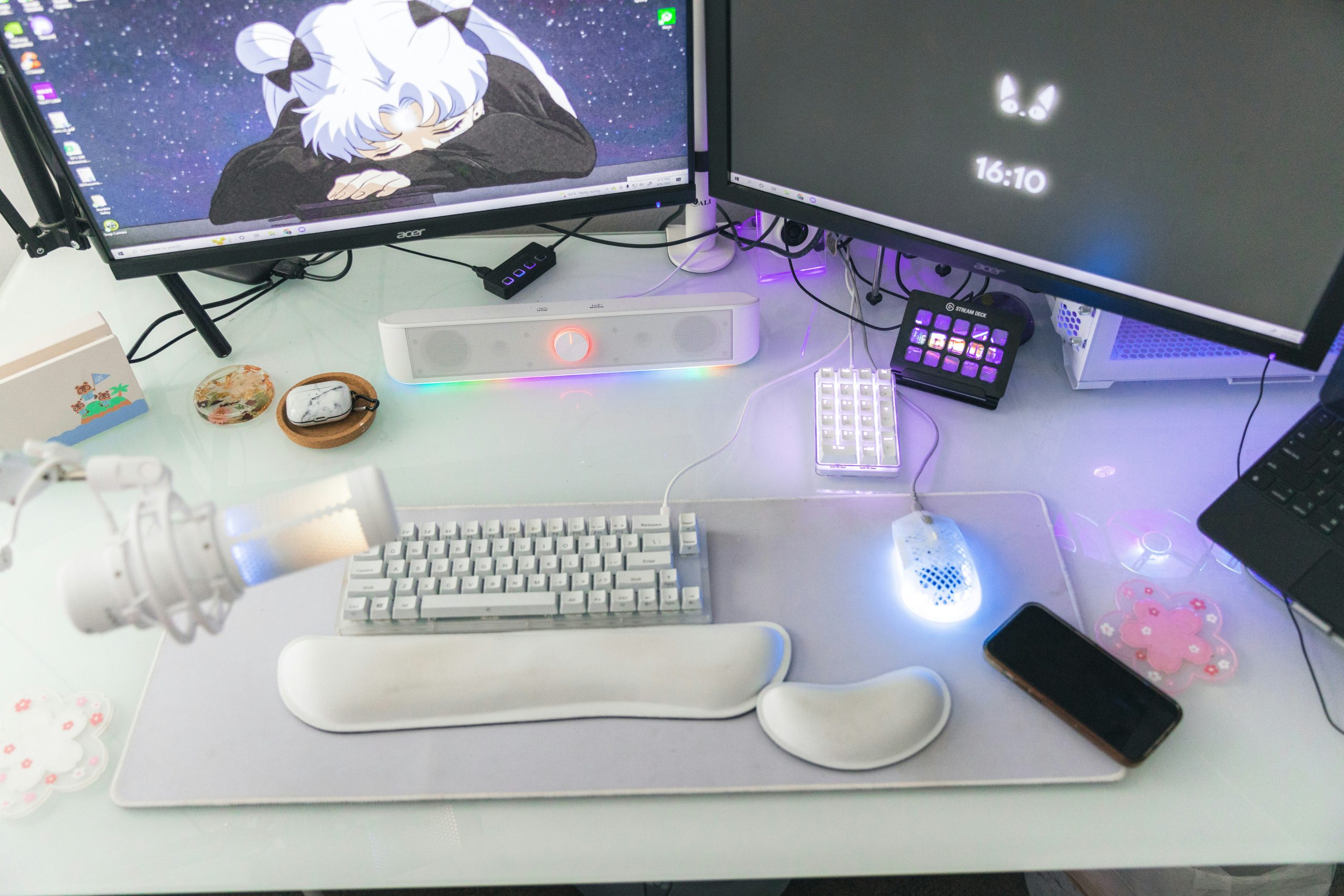
Keep the mouse close to the keyboard so you aren’t reaching. A wrist rest can support neutral wrists during pauses, but avoid resting on it while you type, since your wrists need to move.
4. Use Lumbar Support
Your lower back should keep a slight inward curve, not a rounded or flat one. Dining chairs and basic office chairs often don’t provide that. A lumbar cushion at the small of your back helps maintain the curve and reduces the muscle fatigue of holding yourself upright. If your chair has adjustable lumbar support, set it so it sits in the curve of your lower back, not against your mid-back.
5. Follow the 20-20-20 Rule
Every 20 minutes, look at something 20 feet away for 20 seconds. The American Optometric Association recommends this rule to reduce the eye strain that builds from sustained close focus.
Don’t rely on memory. Use a repeating timer, an app that reminds you, or a browser extension.
6. Fix Your Lighting
Lighting is one of the most overlooked ergonomic factors. Two key rules:
- Eliminate glare: position your monitor perpendicular to windows, not facing them and not with your back to them.
- Match screen brightness to the room: a bright screen in a dark room strains your eyes, and a dim screen in bright light makes you squint.
A desk beside a window gives you daylight without glare, and an LED desk lamp fills in when it’s dim. Our guide to home office lighting goes through the options in detail, and the distraction-free home office setup guide covers the rest of the environment.
7. Stand and Move Every 30 to 45 Minutes
No chair or posture fully cancels the effects of sitting for hours. Set a timer to stand, stretch, and move for two to five minutes every 30 to 45 minutes. A sit-stand desk lets you alternate positions if your budget allows. If it doesn’t, working from a kitchen counter or shelf at standing height for some sessions has a similar effect. A short walk between tasks also resets your posture.
For low-cost upgrades, see our home office setup on a budget guide. If you’re short on space, home office ideas for small spaces shows how to get these positions in a compact area.
A Two-Minute Posture Check
Run through this at the start of each work session and after breaks:
- Feet flat, hips back in the chair.
- Lower back touching the support.
- Shoulders relaxed, not raised toward your ears.
- Elbows near your sides, forearms roughly level.
- Wrists straight, not bent up or down.
- Screen top at eye level, an arm’s length away.
- Neck neutral, chin not poking forward.
Three Quick Stretches for Breaks
- Chest opener: clasp your hands behind your back and gently lift for 20 seconds.
- Neck release: tilt your ear toward your shoulder and hold for 15 seconds on each side.
- Wrist flexor stretch: extend an arm, palm up, and gently pull the fingers back for 15 seconds on each hand.
These are general suggestions. If you have persistent pain, numbness, or tingling, see a healthcare professional instead of relying on setup changes alone.
Start With Two Changes
Ergonomics isn’t about perfection. It’s about reducing the friction that discomfort adds to every session. Start with chair height and monitor position, which fix the most common pain points. Make the adjustments this week and give your body a couple of weeks to adapt.
Frequently Asked Questions
What is the most important ergonomic adjustment?
Chair height and monitor position. Seat height sets everything below it, and eye-level screens address the neck strain common among laptop users. Start with those two.
Do I need an expensive ergonomic chair?
Not necessarily. Setup matters more than price. A modest chair at the right height with a lumbar cushion can serve you better than a costly one set up incorrectly. Add lumbar support and a laptop stand before upgrading furniture.
Is a standing desk worth it?
It can be, if you use it to alternate between sitting and standing. Standing all day has its own problems, so use it to vary your position, not to stand permanently.
How far should my monitor be from my face?
Roughly an arm’s length, commonly cited as 20 to 28 inches, with the top of the screen at or slightly below eye level. If you lean in to read, increase the font size instead of moving the screen closer.
Can better ergonomics improve productivity?
It can help indirectly. When your workspace doesn’t hurt, you have fewer distractions from discomfort and can stay focused longer. Results vary from person to person.
About the author: Alex is a software developer who has worked remotely for three years. He started Deep Focus Daily to document the productivity systems that actually survive real remote work — not the advice written for offices that no longer exist. Learn more about Deep Focus Daily →